Schedule Posts to Multiple Platforms in 30 Minutes
A timed, minute-by-minute plan to set up cross-platform scheduling in half an hour, from picking platforms to a full week of posts in your queue.
Most people who say they "do social media" are really doing the same thing five times. Write a caption, open Instagram, paste it. Open LinkedIn, trim it. Open X, cut it down again. By the third app the post has lost its charm and you have lost your evening.
This guide is a timed plan. It assumes you already know what you want to say and just want the machinery working. If you are starting from absolute zero, read the getting started guide first. This one is about speed and structure once you have your head around the basics.
Before the clock starts (2 minutes)
Decide two things:
- Which two or three platforms matter most. Not all of them. You can add more next week.
- How many posts a week you can sustain. Three is a good number. Ten is a good way to quit by February.
Also have a few things ready: a handful of images or a short video, and a rough idea of the week's topics.
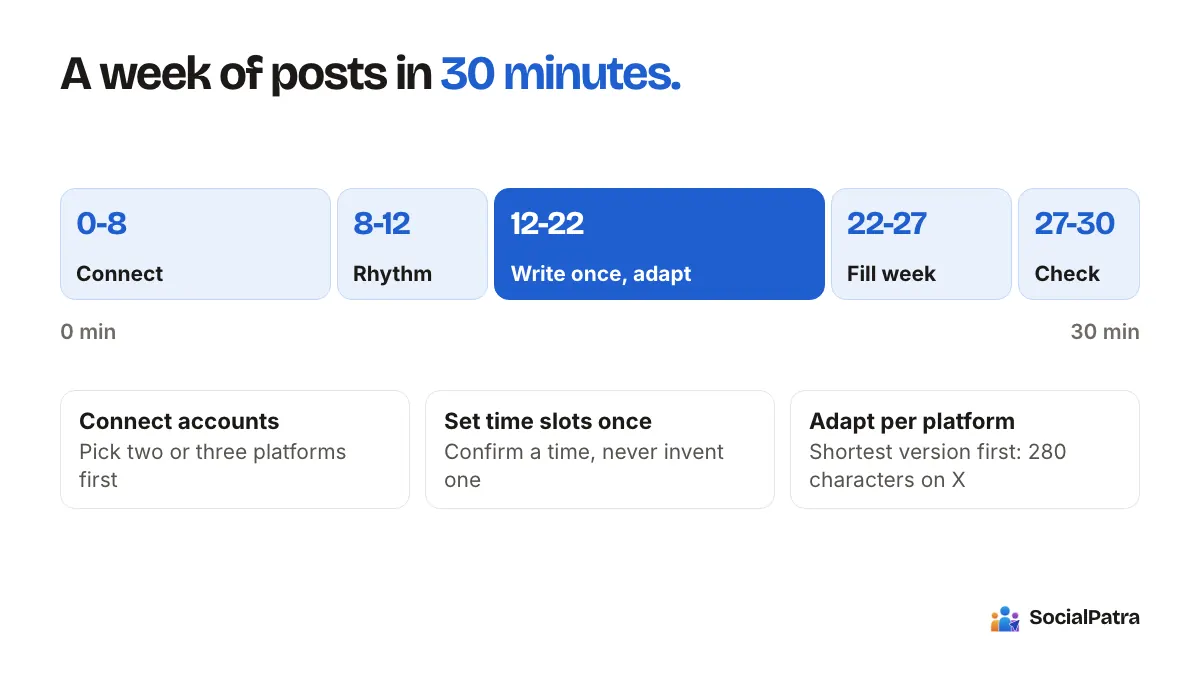
Minutes 0 to 8: connect your accounts
Open the connections page and connect the platforms you picked. For each, you are sent to the platform to approve access, then returned to SocialPatra with the account linked.
A few notes so nothing surprises you:
- Instagram connects as a Business account.
- LinkedIn connects as a personal profile.
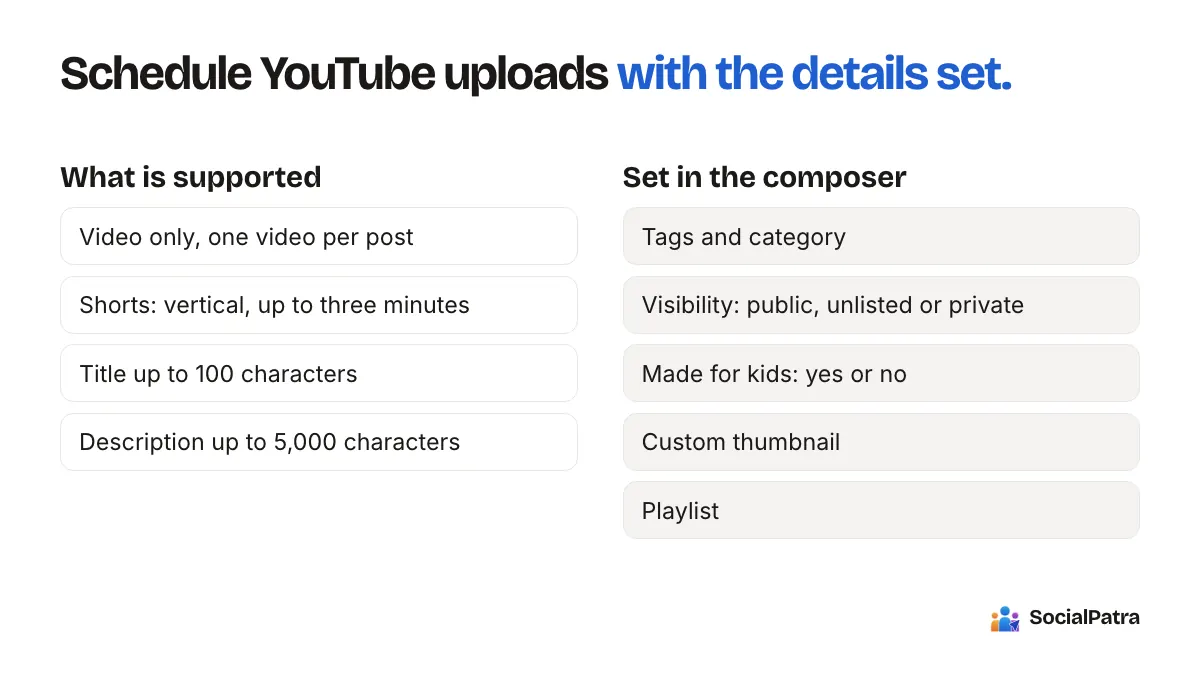
- YouTube is video only.
- Threads, Bluesky and Mastodon connect in the same few clicks.
If you are an agency, do this inside the client's workspace. Never connect a client's accounts into your own. See agency workspaces.
Minutes 8 to 12: set your posting rhythm once
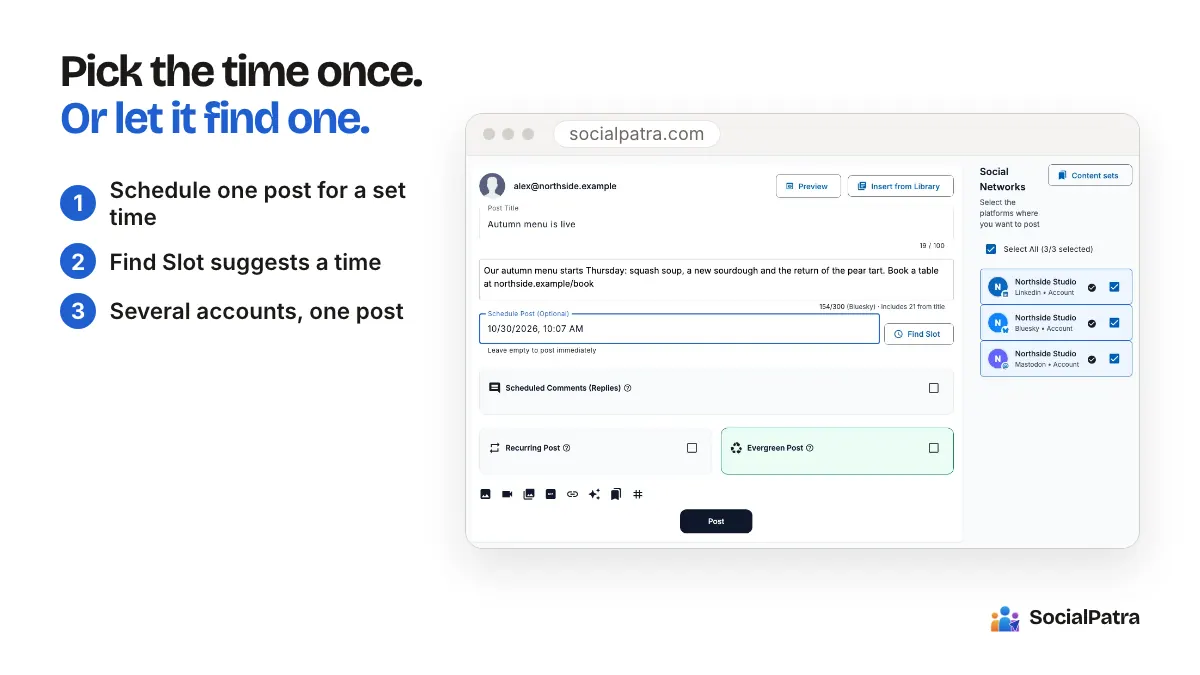
Instead of choosing a time for every post, set standing time slots per account. Each slot is a day and a time. Maybe Monday to Friday at 9:00 for LinkedIn, and evenings for Instagram.
You can also save a reusable posting schedule, such as "Weekday mornings", and apply it to all accounts, specific platforms or individual accounts. After this, scheduling a post means confirming a suggested time, not inventing one. The details are in the time slots guide.
This step costs four minutes and saves you that decision every single time afterwards.
Minutes 12 to 22: write once, adapt where it counts
Open the composer and write your first post. This is the one idea you want to send across your platforms.
Then choose your accounts. The selector only shows accounts that can take the kind of post you made, so a video offers video-capable accounts and a poll offers poll-capable ones.
Now adapt. Limits differ, and they are real:
- X (Twitter): 280 characters on a standard account
- Bluesky: 300 characters
- Instagram: 2,200 characters, and it needs an image or video
- LinkedIn: 3,000 characters
- YouTube: video only, with a 100-character title
A reliable method is to write the shortest version first. If it works at 280 characters, it works everywhere. Then expand for the platforms that have room, such as LinkedIn, with a bit more context or a story. You can adjust the text per platform rather than sending one version everywhere.
Do not paste identical text across the board. A line that sounds natural on LinkedIn can feel stiff on Instagram. Thirty seconds of tailoring per platform is the difference between "posted" and "posted well".
For hashtags, keep Instagram and Threads readers in mind and go lighter on LinkedIn and X. If you want help with wording, the AI content generator can draft from a prompt, a block of text or a URL. Use it for the rough draft, then make it yours.
Minutes 22 to 27: fill the week
Repeat the previous step for the rest of the week's posts. Two time savers:
- Use drafts. If a post is not ready, save it and come back. A rushed post is worse than a delayed one.
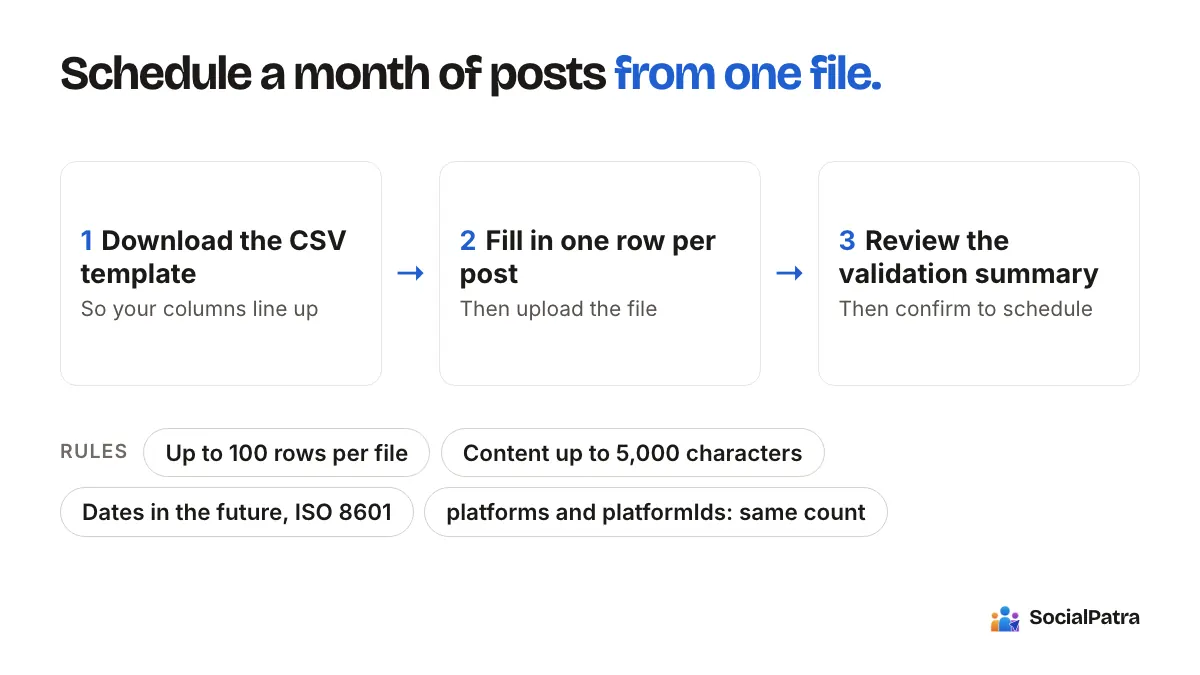
- Use bulk import if you already plan in a spreadsheet. You can upload a CSV with up to 100 rows and review the validation summary before anything is scheduled. See bulk CSV import.
A realistic first batch is a small mix:
- A text or link post for LinkedIn and X
- An image or carousel for Instagram and Threads
- A short vertical video that can go to Instagram as a Reel and YouTube as a Short
- A poll, if you want to hear from your audience
Minutes 27 to 30: check the queue
Open the queue and calendar and look at what you built. You are checking for three problems:
- Everything bunched on one day. Spread it out.
- The same text everywhere. Vary it.
- A missing piece. Is there an image on every Instagram post? Instagram will not accept a post without media.
If something is wrong, scheduled posts can be edited, rescheduled or cancelled until they go out. Nothing is locked in.
What to automate next
Once the basic weekly batch works, you can add more on top:
- Autopilot for a steady stream of product posts
- RSS automation to turn new articles from a feed into posts
- A routine for replies in the social inbox
Do these one at a time. Adding three automations in the same week makes it hard to tell what is working. For ordering advice, see social media automation best practices.
Where you come in
Half an hour gets the system working, and your time goes back to what only you can do. You bring the ideas, you know what your audience cares about, and you still need to reply to the people who respond. For the balance between the two, read what to automate vs post manually.
FAQ
Can I post the same content to every platform?
You can, but you should not send it unchanged. Platforms have different character limits and different tones. Write the shortest version first, then expand for platforms with more room.
Why can't I select some of my accounts for a post?
The account selector shows only accounts that can accept the type of post you created. A video shows video-capable accounts, and a text post will not show a video-only channel like YouTube.
How many posts can I schedule at once?
You can line up as many as you like one by one, or import up to 100 rows in a single CSV upload.
Can I change a post after scheduling it?
Yes. Until it publishes, a scheduled post can be edited, rescheduled or cancelled.
Ready to try the 30-minute setup yourself? Pick a plan.
One workspace for every network is what a social media management tool is for.