LinkedIn post scheduler
A LinkedIn post scheduler lets you write a post now and have it published to LinkedIn at a later time you choose, and SocialPatra does this for your personal profile.
Last verified
Plan: Free and up
LinkedIn does not offer scheduling through its API. SocialPatra keeps your post and publishes it to LinkedIn at the time you set, so you can plan a week of posts in one sitting.
You choose the date and time in the composer, and each scheduled post shows on your calendar until it goes out. The steps, post types and limits below come from how our LinkedIn connection works today.
How to schedule LinkedIn posts
- Connect LinkedIn. Open Connections, choose LinkedIn and pick LinkedIn Profile in the dialog that appears. You then sign in on LinkedIn and approve access.
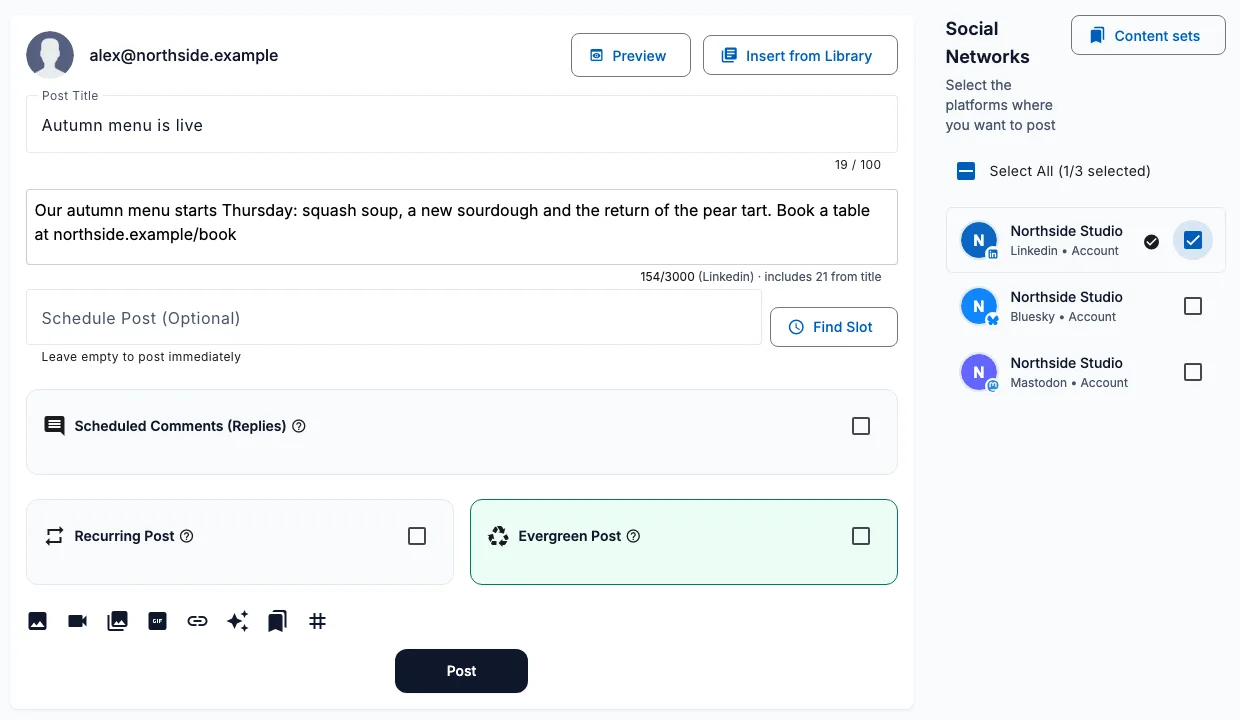
- Write the post. Open the composer, choose your LinkedIn profile and write the text. LinkedIn posts always need text, even when they carry an image or video.
- Add media, a link or a poll if you want one. Attach images or a video, add a link, or switch to a carousel or poll.
- Pick the date and time. Choose when it should go out and schedule it. It appears on your calendar until it publishes.
Personal profile and company page
Personal profile posting is available today. Posting to a LinkedIn company page is not offered yet: it is waiting on LinkedIn's platform approval, so we do not list it as supported.
If you want to schedule posts to a LinkedIn company page, check back here once that approval is through.
LinkedIn post types and limits
| Post type | What it does | Limit |
|---|---|---|
| Text | A text-only post | 3,000 characters |
| Image | One or more images with your text | Up to 20 images; JPG, PNG or GIF |
| Video | A video with your text | MP4, MOV or AVI, up to 200 MB |
| Link | Your text followed by a URL, which LinkedIn turns into a preview | Counts toward the 3,000 characters |
| Carousel | Three or more images published as a swipeable document | 2 to 20 images, images only |
| Poll | A question with answer options | 2 to 4 options, up to 14 days; question 140 characters, option 30 characters |
A single PDF file is published as a LinkedIn document post.
A poll cannot carry images or video, so write the context in the post text.
Choosing the right post type
- Use a text post for a short opinion, a lesson learned or a question to your network. It is the simplest type and has the fewest ways to go wrong.
- Use an image or video post when the visual carries the message, such as a product screenshot, a chart or a short walkthrough.
- Use a link post when you want people to read something elsewhere, such as an article or a launch page. Put the reason to click in your own words above the link.
- Use a carousel for a step-by-step guide, a checklist or a summary of a longer piece. Keep each image to one point.
- Use a poll when you want a quick signal from your audience. Keep the question short and the options clearly different from each other.
Writing for LinkedIn
SocialPatra escapes characters that LinkedIn treats as formatting and turns plain #hashtags into LinkedIn hashtags, so your text appears the way you typed it.
LinkedIn does not allow a published post to be edited through its API, so read the post through once before you schedule it.
Before you start
- You need a personal LinkedIn account that you can sign in to. SocialPatra never asks for your LinkedIn password; you approve access on LinkedIn itself.
- Decide your posting rhythm first. Two or three posts a week that you can keep up beat a daily plan that stops after a fortnight.
- Gather your images, videos or PDF files before you open the composer, so the scheduling takes minutes rather than an afternoon.
Tips for a LinkedIn schedule that works
- Lead with the point. LinkedIn shows only the first lines of a long post before the "see more" link, so put the main idea first.
- Keep one idea per post. A short post with a clear takeaway is easier to read than a long one that covers three topics.
- Use a few relevant hashtags at the end rather than a long list in the middle of the text.
- Add a carousel when the post is a list or a how-to. Each image becomes one page of the document.
- Write the whole week in one sitting, then spread the posts across the days when your audience is most likely to read them.
What happens when the post goes out
When LinkedIn accepts the post, it returns the post ID and SocialPatra builds the link to the live post from it.
If LinkedIn does not confirm in time whether a post was created, SocialPatra does not send it a second time. A repeat could put the same post on your profile twice, so check LinkedIn before you try again.
LinkedIn analytics in SocialPatra
For each published post, SocialPatra reads the number of likes, comments and shares from LinkedIn and shows them on the Analytics page.
Impressions, reach and clicks are not collected for LinkedIn posts, so do not expect them in the dashboard.
LinkedIn does not give profile follower counts to SocialPatra, so a profile shows no follower figure.
Publishing limits and reconnecting
- SocialPatra allows up to 500 LinkedIn publishes per 24 hours for one target, well above normal posting.
- Large videos can take a while: LinkedIn processes them after upload, and SocialPatra waits up to 30 minutes for that to finish.
- If you connected with fewer permissions than a feature needs, refreshing the token does not add them. Disconnect and connect LinkedIn again to grant them.
How to disconnect LinkedIn
- Open your connected accounts. Go to the Connections page of your workspace.
- Remove the account. Choose Remove on the account and confirm. Only the workspace owner and admins see this button.
- Reconnect later if you need to. Removing an account is permanent. To post to it again you connect it again from the start.
Frequently asked questions
Can I schedule LinkedIn posts with SocialPatra?
Yes. Connect your LinkedIn profile, write the post, choose a date and time, and SocialPatra publishes it for you at that time.
Can I schedule posts to a LinkedIn company page?
Not yet. Company page posting is waiting on LinkedIn's platform approval, so only personal profiles are supported today.
Can I edit a LinkedIn post after it is published?
No. LinkedIn does not allow a published post to be edited through its API, so SocialPatra cannot change it either. Check the text before the scheduled time.
What video formats and sizes work for LinkedIn?
MP4, MOV and AVI files up to 200 MB. LinkedIn processes the video after upload, and SocialPatra waits up to 30 minutes for that to finish.
Does SocialPatra show LinkedIn analytics?
Yes, for likes, comments and shares on each published post. Impressions, reach and clicks are not collected for LinkedIn.
Try it on your own accounts
No card needed to start.