Content Calendar, Batching and a Reusable Library
How to run a content calendar without it eating your week: plan visually, batch in one sitting, and build a library of posts you can reuse.
Most content calendars die the same way. You build a beautiful spreadsheet in January, fill the first two weeks, and by March it's a tab you avoid opening. The calendar wasn't the problem. The problem was that every post still had to be created, scheduled and tracked by hand, so the system cost more attention than the posting itself.
Automating a content calendar doesn't mean posting without thinking. It means moving the repetitive parts (copying, rescheduling, remembering what worked) out of your head and into tools, so your attention goes to deciding what to say.
Here's a workflow built on three habits: plan in a calendar, batch the creation, and keep a library you can pull from.
Keep the calendar for decisions, not data entry
A calendar earns its keep when it answers one question at a glance: what's going out, and when? In SocialPatra, the Calendar page shows a month grid of your scheduled posts, with each post labeled by platform and time. On a phone, the same data collapses into an agenda that lists only the days that actually have something scheduled.
The part that saves time is moving things around. Drag a post from one day to another and it's rescheduled. The time of day stays the same, in your workspace's time zone, and only the date changes. If the new time has already passed, you get a clear message and the post goes back where it was.
That one interaction replaces a surprising amount of work. A holiday lands on a day you'd planned to post? Drag. A launch slips two days? Drag the whole run. You're editing a plan, not retyping it.
Use posting schedules so you stop picking times
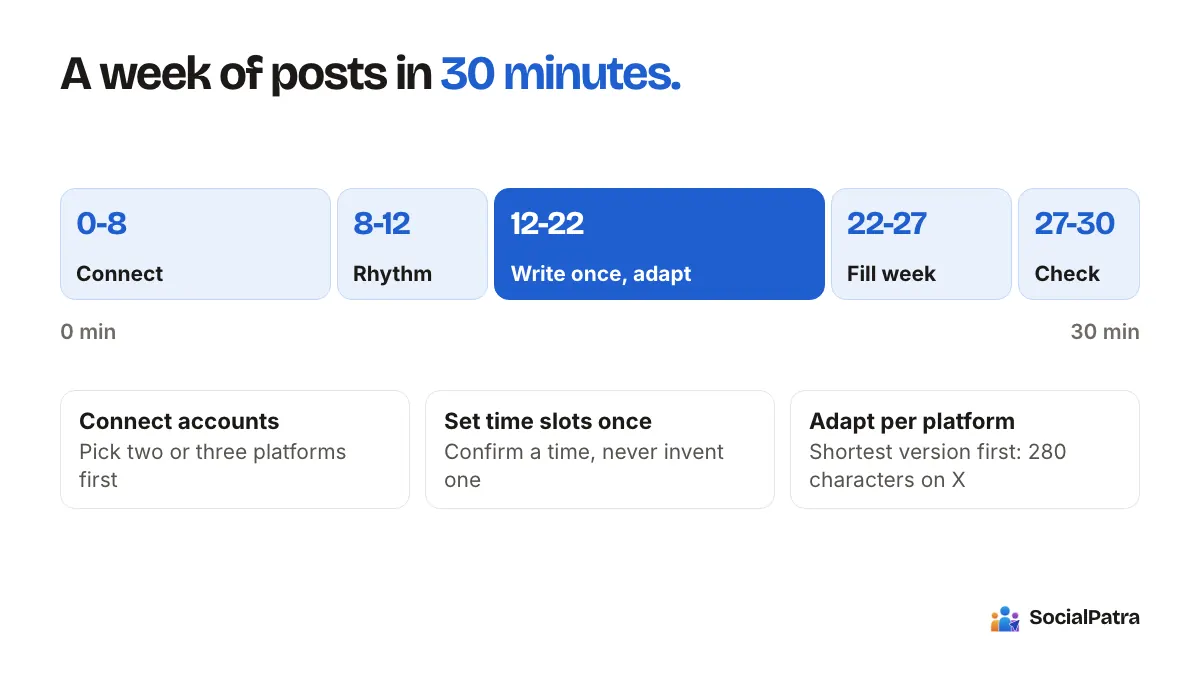
Choosing a time for every post is a small tax you pay forty times a month. Time slots remove it: set the recurring slots for each account once, and SocialPatra suggests the next open one when you schedule. You can also save a posting schedule as a template and apply it to all accounts, to every account on a set of platforms, or to specific accounts. Our scheduling walkthrough goes through the options.
Batch creation: one sitting, one mode
Batching works because switching tasks is expensive. Writing, designing and scheduling use different kinds of attention. Doing all the writing at once, then all the scheduling, is faster than finishing posts one at a time.
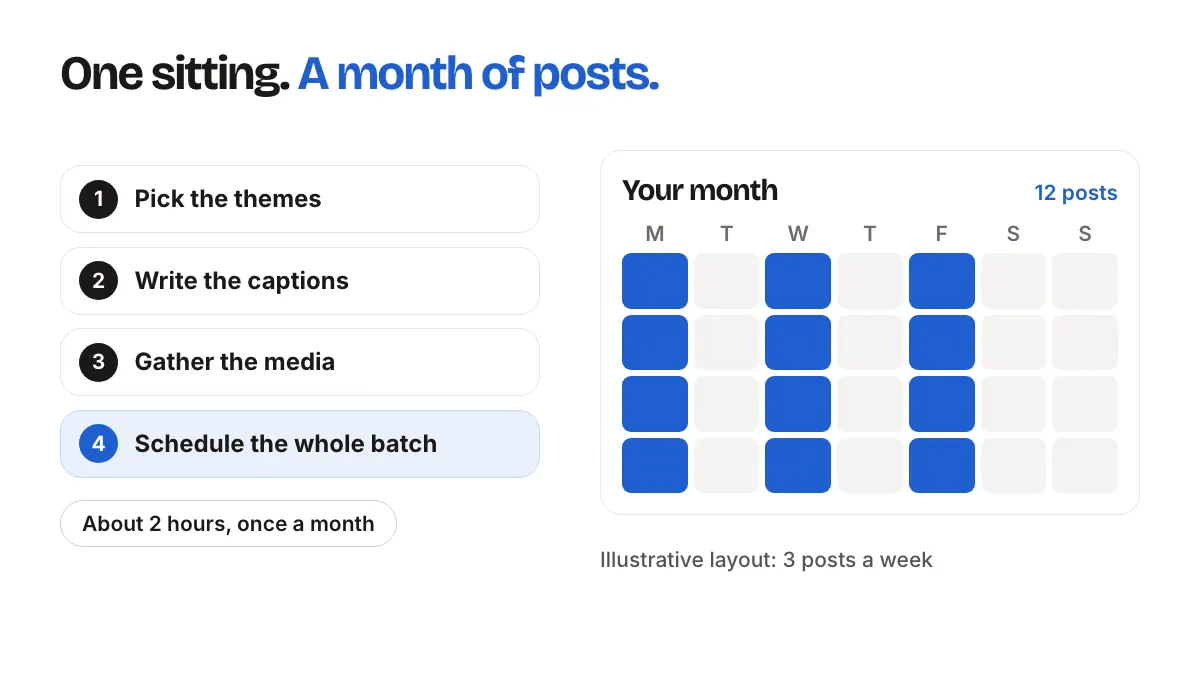
A simple batch session for a month of content:
- Pick the themes. Three or four recurring topics are enough: a tip, a behind-the-scenes shot, a customer question, a product moment.
- Write the captions in one go. If you start from a blank page, use AI Studio for first drafts and edit them in your own voice. Our piece on AI ideas and captions covers how to do that without sounding generic.
- Gather the media. Upload images and video to the media library so they're ready to attach.
- Schedule the whole batch.
For step 4 you have two routes. The composer is best when each post is a bit different. If you plan in a spreadsheet, bulk CSV import lets you upload up to 100 rows in one file. Each row is one post, with its content, platforms, accounts and scheduled time. The upload only validates first, so you see which rows have problems before anything is committed.
There's also a free CSV checker on the SocialPatra site, which is handy if you want to catch errors in the spreadsheet before you even sign in.
Batching for several clients
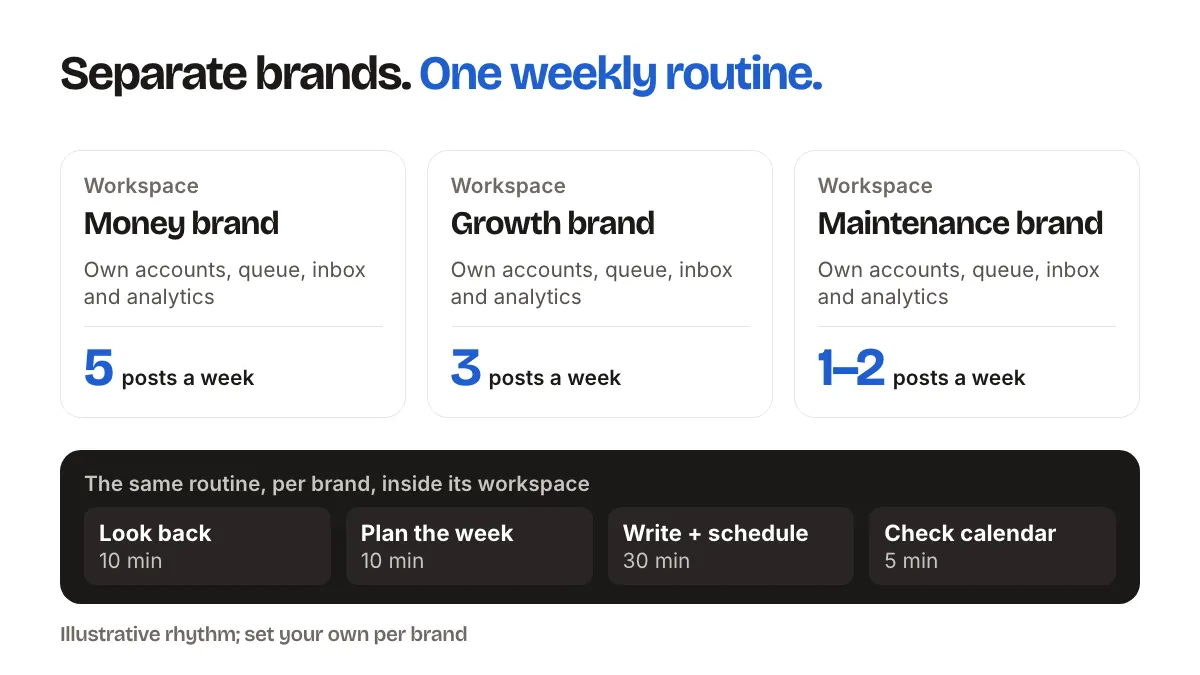
An agency runs the same sitting once per client. Each client has their own workspace, so calendars, accounts and queues don't mix. Do client A's month, switch workspaces, do client B's. If clients or managers need to sign off, SocialPatra has an approvals area so review can happen before posts go out. More on that in our guide to agency workspaces.
Build a content library you will actually use
A calendar tells you what's next. A library tells you what you already have. Without one, every month starts from zero even though you've written hundreds of posts.
The Content Library in SocialPatra fills itself. You don't enter anything by hand. It has tabs for:
- Posts: everything you've created, searchable.
- Top performing: your posts ranked by engagement, so you can see what resonated.
- AI Generated: outputs from AI Studio, saved so a good draft isn't lost.
- Hashtag sets: tags you reuse, saved under a name and added to a post in one tap.
- Favorites: items you've starred.
- Templates: ready-made starter posts you can adapt.
The main action everywhere is Reuse. It opens the composer prefilled with that content, so remixing an old post for a new platform takes seconds instead of a rewrite. Team members who can only view or approve don't see the remix trigger, because creating posts requires permission.
A good habit is a monthly look at Top performing. Pick the three posts that did best, and ask what they have in common. Then reuse the format, not the exact words.
Let evergreen content work twice
Not every post expires. A tip about structuring a budget or a recipe for sourdough starter is as useful in six months as it is today. SocialPatra has two features for this, and it's worth knowing exactly what each does.
Recurring posts repeat on a pattern: daily, weekly or monthly. You can add an end date, or leave it empty to repeat indefinitely. This suits things like a weekly "tip of the week" slot or a monthly reminder.
Evergreen posts work differently. After the post publishes, it's reposted once, a number of days later (you choose the interval, for example 30), and then it stops. To recycle it again, you create a new evergreen post. It's a gentle way to resurface your best material without building a second calendar.
Both of these, along with RSS automation and Autopilot, are on paid plans. The Free plan covers basic scheduling.
Pull content in automatically
Some of your calendar can fill itself. RSS automation turns new items from a blog or podcast feed into draft or scheduled posts, with filters to keep the noise out. Autopilot writes product posts from your catalog on a cadence you set, with a preview before you commit.
Both create posts that land in your calendar, so you can still drag, edit or delete them. That visibility is what keeps automation from becoming a black box.
A month, end to end
For a solo creator posting to Instagram and a newsletter, a month might look like this: one two-hour session on the first weekend of the month. Pick four themes, draft twelve captions, attach saved hashtag sets, and schedule them into time slots. A recurring Friday slot handles a weekly tip. One evergreen post resurfaces your best older piece. Mid-month, open the calendar, drag anything that needs to move, and check Top performing before planning the next batch.
For related habits, see what to automate and what to post manually.
FAQ
What's the difference between recurring and evergreen posts?
A recurring post repeats on a daily, weekly or monthly pattern until an end date, or indefinitely. An evergreen post is republished once after the interval you set, then stops.
Can I move a scheduled post to another day?
Yes. Drag it to a new date on the Calendar page. The time of day stays the same, and the change is saved right away.
Does the content library need manual setup?
No. Your posts and AI outputs appear in it automatically. Hashtag sets and favorites are the two things you add yourself.
How many posts can I schedule in one bulk upload?
Up to 100 rows per file. If you've planned more, split the plan into batches.
Want to try a batch session? Pick a plan.
Batching works best with a scheduler: here is how SocialPatra works as a social media scheduler for India and beyond, with plans billed per connected account.