AI for Social Media: Ideas, Captions and Hashtags
How to use AI for content ideas, caption drafts and hashtag research without sounding like a robot, and where SocialPatra's AI tools fit into that workflow.
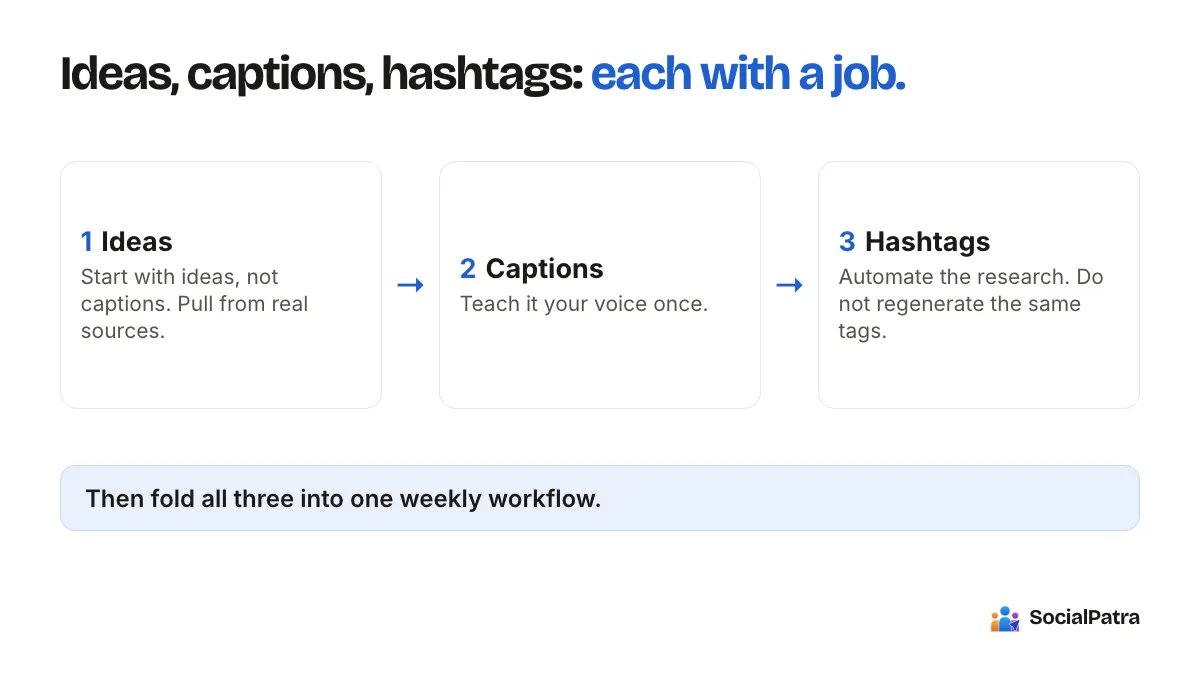
People ask the same three things about AI and social media. Can it come up with ideas? Can it write captions I'd actually post? Can it do my hashtag research? The honest answers are yes, mostly, and sort of. Each one works when you give it a job it's good at and keep your own judgment in the loop.
This is a practical walkthrough of all three, with the failure modes included. If you want a feature-by-feature tour of one tool, our AI Generate walkthrough covers that. This article is about the workflow around it.
Start with ideas, not captions
The blank page is the real problem. A caption is easy once you know what the post is about. So use AI first for the "what," not the "how it reads."
A few prompts that tend to produce usable lists:
- "Give me 15 post angles for a bakery that sells sourdough, aimed at people who've never baked bread."
- "I run a bookkeeping practice for freelancers. What questions do my clients ask that I could answer in one short post each?"
- "Here are my last five posts. What topics am I not covering?"
Notice what these have in common. They carry context: who you are, who you're talking to, what you've already said. A bare "give me social media ideas" returns the same generic list everyone else gets, and so does everyone else's audience.
Treat the output as a brainstorm. Most of it will be average. Two or three items will make you think "oh, that's actually good," and those are the ones worth keeping. Throw the rest away without guilt.
Ideas that come from real sources
AI is better at reshaping real material than inventing from nothing. Your own raw material is full of ideas: a newsletter you already sent, a customer email, a call recording summary, a blog post from last quarter.
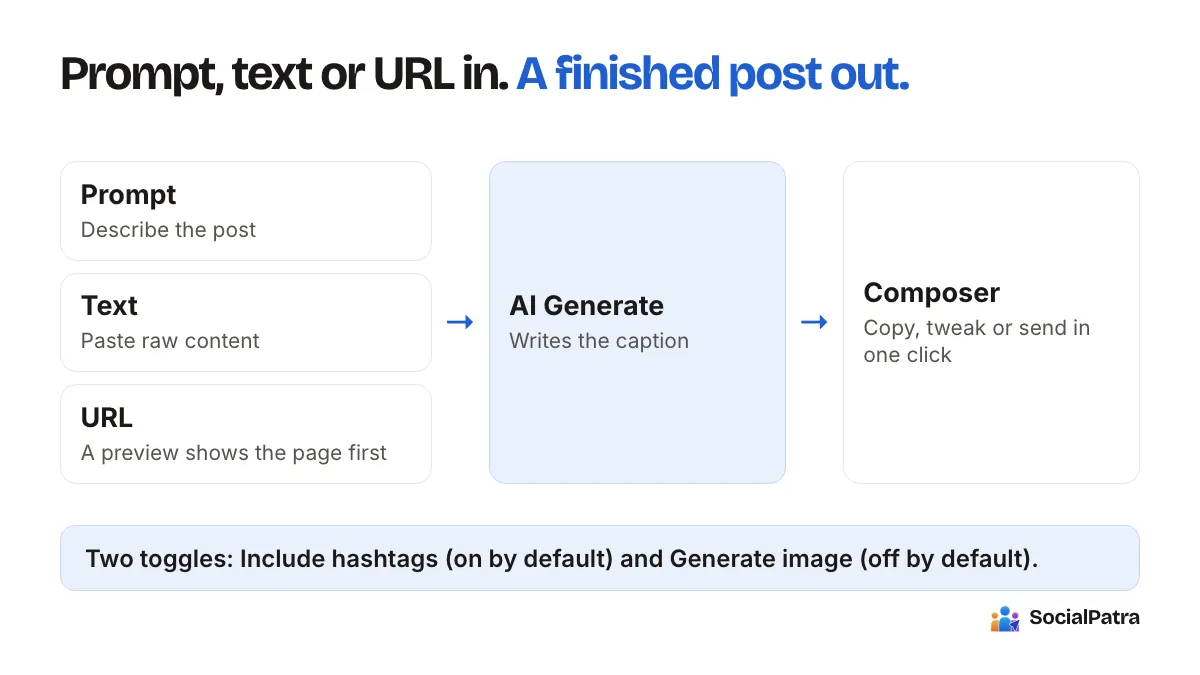
SocialPatra's AI Generate page has a URL mode and a text mode for exactly this. Paste a link or a block of text and it writes a post from that source instead of making things up. There is also a Content Discovery page where you add sources such as RSS feeds, and pull in what's new to rewrite and post. For a solo creator, that's a steady supply of "I already know about this, I just need to say it for Instagram."
Using AI as a caption writer
Here's where most people go wrong. They ask for a caption, paste whatever comes back, and wonder why the account sounds like every other account.
A better rhythm has three steps.
- Generate a first draft from a specific input: an idea, a pasted paragraph, or a link.
- Read it out loud. Anything you'd never say in conversation gets cut or rewritten.
- Refine in small moves rather than starting over.
On that last point, AI Studio in SocialPatra keeps the conversation going. Under a draft you'll find quick replies: Regenerate, Shorter, More casual, Add CTA, and Add emojis. You can also type your own instruction, like "lead with the price" or "make the second sentence a question." Each pass builds on the last draft.
Teach it your voice once
The biggest quality jump comes from telling the tool how you sound. AI Studio has a brand voice setting where you write a few lines about tone, plus words to use or avoid. Something like: "Friendly and plain. Short sentences. No jargon, no exclamation marks." You can also set a default language, so an audience that reads another language doesn't get English by default.
Only workspace owners and admins can change these settings, which matters if you're an agency. Each client lives in its own workspace, so each one can have its own voice. The bakery sounds like a bakery, and the law firm doesn't.
What AI captions still get wrong
Be realistic about the limits.
- It doesn't know your facts. If the post mentions a price, a date, or a policy, check it yourself.
- It over-smooths. Real humans have opinions and odd phrasings. A draft that has none of that reads as flat.
- It guesses at platform culture. A caption that works on LinkedIn can feel stiff on Threads. AI Studio warns you when a draft runs over a platform's character limit, but tone is still your call.
Used that way, AI saves you most of the first-draft typing and none of the thinking. That's a fair trade.
Automating hashtag research
Hashtag research is tedious, and it's a good fit for automation, because the task is narrow: given this post, suggest tags that match it.
In the SocialPatra composer, there's a hashtag button next to the text editor. Write your post, choose at least one platform, and click it. You get five suggested hashtags based on your content. Click a single tag to add it, or append them all at once. The button stays greyed out until there's text and a platform selected, since the suggestions depend on both.
AI hashtag suggestions are included on every paid plan, alongside AI Studio.
Don't regenerate the same tags every time
Here's a trap. If you ask AI for hashtags on every single post, you end up with fresh, slightly different tags each time and no consistency. For most accounts, a small set of reliable tags beats a rotating pile.
That's what hashtag sets are for. In the Content Library there's a Hashtag sets tab. Save the tags you reuse as a named set, say "sourdough basics" or "tax season," and then pick the set from the composer in one tap. A sensible split looks like this:
- Use AI suggestions when you're starting a new topic and don't know what people search for.
- Save the good ones into a set.
- Reuse the set until the topic changes.
A note on how many to use
There's no magic number, and anyone quoting you one as fact is guessing. Platforms change how they treat tags regularly. What holds up is keeping tags relevant to the post, not stuffing a block of thirty unrelated ones at the end, and checking what each platform actually rewards before you settle on a habit. If you're unsure, run a few posts with different amounts and compare the results in your analytics.
If the tags should go in a first comment instead of the caption, the composer has a Scheduled Comments option that posts a reply after your main post publishes. That's useful when you want a cleaner caption.
A weekly workflow that holds together
Here's how a solo creator might use all of this in one sitting.
- Spend ten minutes asking for angles, using your last few posts as context. Pick six.
- Open AI Studio, generate a draft for each, and refine. Cut anything that doesn't sound like you.
- In the composer, generate hashtags for new topics and attach saved sets for familiar ones.
- Schedule everything. If you want help choosing times, our scheduling guide walks through time slots.
An agency version looks the same, repeated per client workspace with each client's brand voice saved. If you want to stay hands-off for product feeds, Autopilot can write on a schedule from your product catalog, and it lets you preview a sample before you commit.
For the broader habits that keep automation from backfiring, see what to automate and what to post manually and how to automate without losing authenticity.
FAQ
Can AI really come up with good social media content ideas?
It can generate plenty of options quickly, and a few will be good. The quality depends on the context you give it. Include your audience, your offer, and what you've already posted, and the ideas get much more specific.
Will AI-written captions hurt my reach?
We haven't seen a reason to believe platforms penalize a caption just for how it was drafted, and we won't make claims about their ranking systems. What does hurt is generic, repetitive posting that no one engages with. Edit every draft so it sounds like you.
Which plans include AI captions and hashtag suggestions?
AI generation, AI Studio and AI hashtag suggestions come with paid plans. Saved hashtag sets in the Content Library let you reuse your best tags on every post.
How many hashtags does the composer suggest?
Five per click, based on your post text and the platforms you've selected. You can add them one at a time or all together, and you can save a favorite group as a reusable set.
Ready to try it on your own posts? Pick a plan.