How to Stop Social Posts Going Out With Mistakes
The checks that catch typos, cut-off captions, broken links and wrong times before a social post publishes, and what SocialPatra checks for you: per-platform limits, a live preview, a link check, approvals and failure alerts.
By SocialPatra Team · Last updated 19 November 2026
Catch mistakes before scheduling: check each post against each platform's rules, look at it the way followers will, open every link, and have a second person approve it. SocialPatra blocks the Post button until every account's limits are met, shows a live preview per account, checks the link in a link post, and can hold posts for an approver.
What causes most mistakes in scheduled posts?
Most posting mistakes come from writing once and publishing to several places. A caption that fits LinkedIn is too long for X. A photo that looks right in the editor gets its sides cropped on Instagram. A link copied from a draft points at a staging page. A post scheduled at 9:00 goes out at 9:00 in the wrong time zone. None of these are typing errors you'd spot by rereading the text; you only see them when you look at the post as each platform will show it.
Which checks catch which mistake?
Match each kind of mistake to a check. This is what SocialPatra does at each step, as of 19 November 2026.
| Mistake | The check | What SocialPatra does |
| Caption too long for one platform | Limit check per account | Shows the error for that account and keeps Post disabled until it fits |
| Missing title where one is required | Required-field check | YouTube, Reddit, Pinterest, Dev.to, Medium, Hashnode and WordPress need a title before you can post |
| Caption cut off behind "more" | Look at it as followers will | Live preview per selected account, with the fold where the platform folds |
| Picture cropped on Instagram | Shape check | A notice when a picture is outside the shape Instagram shows, and how it will be cropped |
| Wrong or broken link | Open the link | In a link post the page is fetched; a reachable page shows its title and image, a bad one is marked with an error |
| Typo or off-brand line | A second reader | Optional approval: the post waits until a reviewer approves it |
| Time already passed | Time check | A time in the past is refused when you schedule or reschedule |
| Post failed on one platform | An alert | A notification in the app, a push and an email, with the reason on the post |
How do I check a post before it publishes?
Look at it the way your followers will, one account at a time. In SocialPatra's composer:
- Pick every account first. The checks run against the accounts you select, so choose them before you polish the text.
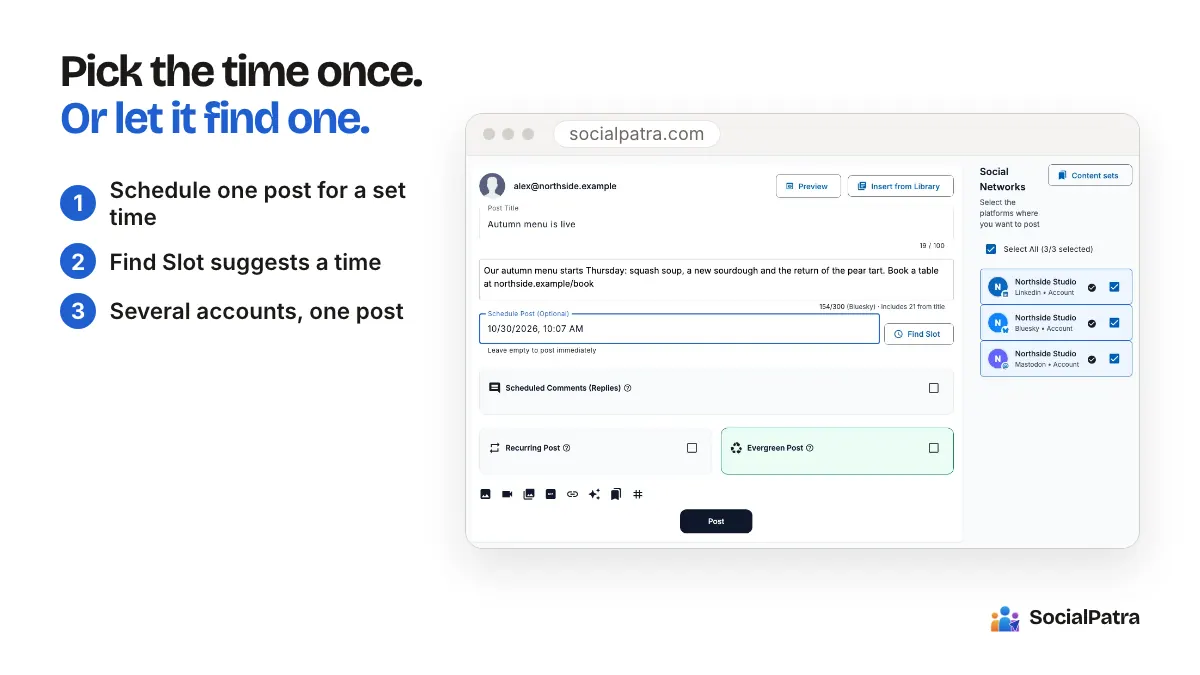
- Read the errors under the editor. Each account's limits are checked as you type: character count, number of images, and rules for carousels, threads and polls. The Post button stays disabled until every selected account passes.
- Open the Preview. It shows the post as it will look on each selected account, with one tab per account. Text folds with "See more" where the platform folds it, and the preview warns when the text is over a platform's limit or there is more media than the platform publishes.
- Read the picture notice. If a picture is wider or taller than Instagram shows, the composer tells you which picture and which edges will be cropped.
The preview is approximate. It is drawn to look like each platform's feed, but the platform has the final word on layout.
How do I stop wrong or broken links?
Open every link once before you schedule, and use the link post type when the link is the point of the post. When you add a link to a link post in SocialPatra, it fetches the page straight away:
- A page that loads shows a preview card with its site name, title, description and image, plus a "Meta Tags Status" line that tells you if the page is missing tags that make its card look right on social networks.
- A link that is malformed or can't be fetched gets a red error marker next to the field instead of a card.
If the card shows the wrong title or image, the link is probably wrong. Fix it before scheduling.
Know the limit: this check runs on the link field of a link post. A link typed inside the caption text is not fetched, so click it yourself before you schedule.
Short links help after publishing. You can choose in workspace settings whether links are shortened always, never or only when you ask, and each short link shows its total clicks and the time of the last click. A short link with no clicks a day after a busy post is worth checking.
How do I get a second pair of eyes on every post?
Turn on approval. In SocialPatra you can require approval for a whole workspace or only for specific team members, such as a new writer. A post that needs approval waits in the approvals queue; a reviewer approves it, rejects it with a reason or requests changes with a comment. If someone who needs approval edits a post after it was approved, it goes back for review, so a late change can't slip out unseen. The full loop is in our approval workflow guide.
For a client who won't log in, send a client preview link so they can read the post and comment before you schedule it.
How do I avoid posting at the wrong time?
Set the workspace time zone once. SocialPatra schedules in the workspace's own time zone, so a 9:00 post means 9:00 where the client is, not where you are. A time that has already passed is refused when you schedule a post or move it, instead of publishing at once. On the Calendar page you can drag a post to another day; the time of day stays the same.
What happens if a post fails anyway?
You hear about it. When a post fails, or publishes on some accounts and fails on others, SocialPatra sends a notification in the app, a push notification and an email. The post shows the reason for each account that failed, and you can retry a failed account, or edit the post and retry. Accounts that need reconnecting are kept out of the account picker, and the app refuses to publish to one instead of failing silently later.
What does this cost?
The composer checks and the preview are part of scheduling on every plan. Approval needs a second person, and Free is for the owner alone, so approval starts on paid plans. Prices as of 19 November 2026; INR is before 18% GST, USD includes tax.
| Plan | Monthly price | Accounts included | Each extra account |
| Free | $0 / ₹0 | 1 (up to 10 posts waiting per account) | Not available |
| Professional | $5 / ₹399 | 1 | $3 / ₹149, every tenth free |
| Business | $10 / ₹829 | 1 | $3 / ₹149, every tenth free |
Approver seats are not billed. See pricing for team members and the Agency plan.
A five-minute pre-publish checklist
Copy this into your team's notes.
- All accounts selected, no errors under the editor.
- Preview opened for each account; nothing cut off where it matters.
- Pictures: no crop notice, or the crop is fine.
- Link post: preview card shows the right page. Links in the caption clicked by hand.
- Time and day checked against the client's time zone.
- Approval on for anyone new to the account.
FAQ
Can SocialPatra stop a post that is too long for one platform?
Yes. SocialPatra checks the text against each selected account's limits as you type and shows which account fails and why. The Post button stays disabled until every selected account passes, so a caption that is too long for X but fine for LinkedIn can't be published to X by accident.
Does SocialPatra check links before a post goes out?
In a link post, yes. SocialPatra fetches the page when you add the link and shows a preview card with its title and image, or marks the link with an error if it is malformed or can't be fetched. Links typed inside the caption text are not fetched, so click those yourself before scheduling.
Can I see how my post will look before it publishes?
Yes. The composer's Preview shows the post as it will look on each selected account, with one tab per account, folded text where the platform folds it, the media grid and warnings for anything over a platform's limit. It is an approximate preview; each platform has the final word on layout.
How do I make sure someone reviews posts before they go live?
Turn on approval for the workspace or for specific team members. In SocialPatra a post that needs approval waits in the approvals queue until a reviewer approves it, rejects it with a reason or requests changes. Editing an approved post sends it back for review. Approval starts on paid plans.
Will I know if a scheduled post fails?
Yes. SocialPatra sends an in-app notification, a push notification and an email when a post fails or publishes with errors on some accounts. The post shows the reason for each failed account, and you can retry it, or edit it and retry, from the post.
Pick a plan and set up your checks. Read more on approvals and scheduling.
Drafted with AI assistance and checked against the product by the SocialPatra team. Facts and prices as of 19 November 2026.