Connect Email, CRM and Social Media Automation
How to make your newsletter, CRM and social posting work together using RSS, tracked links, webhooks and an API, and where native integrations do and don't exist.
Your newsletter, your CRM and your social accounts are usually three separate islands. You write a newsletter, then rewrite it as posts. A lead comes in from Instagram, and someone types it into the CRM by hand. A post fails to publish and nobody notices until a customer mentions it.
Connecting these doesn't need a big platform. A handful of small links covers most of it. This article walks through four of them, and shows how SocialPatra's open building blocks plug into nearly any CRM or email platform.
What SocialPatra connects to
SocialPatra works with the CRM and email platform you already use.
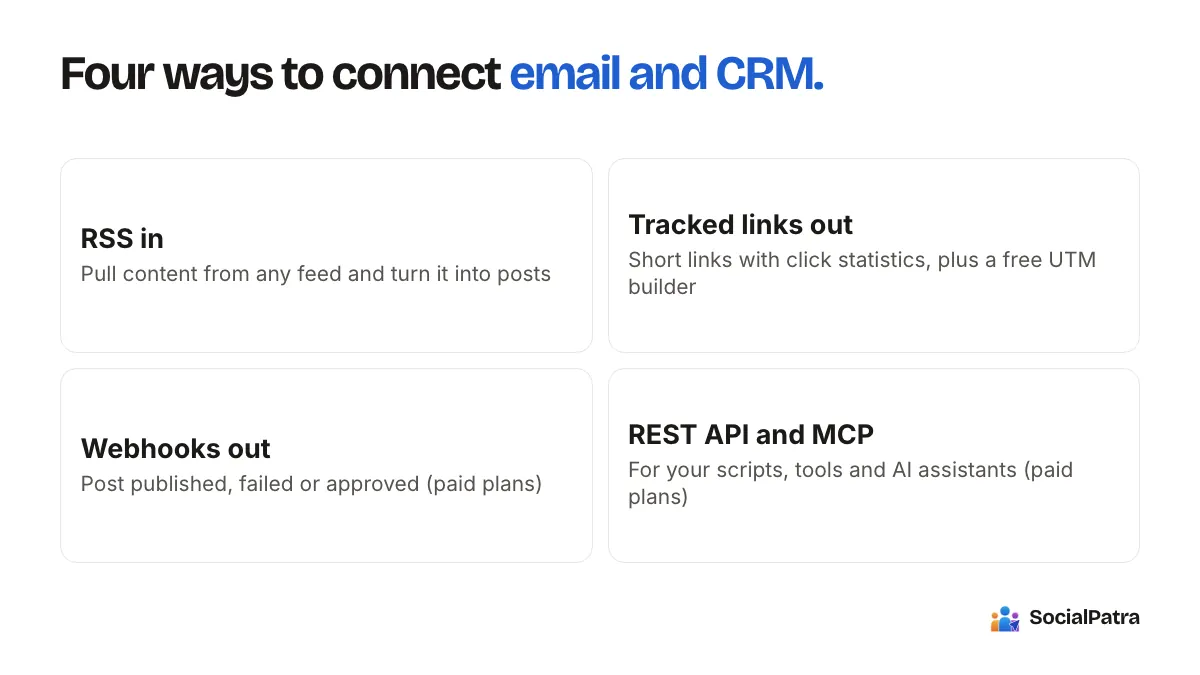
It speaks the standard building blocks that connect to nearly anything:
- RSS in. Pull content from any feed and turn it into posts.
- Tracked links out. Short links with click statistics, plus a free UTM builder, so you know which posts drive sign-ups.
- Webhooks out. On paid plans, SocialPatra can notify a URL you control when a post is published, fails or is approved.
- A REST API and an MCP connector. Also on paid plans, for your own scripts, automation tools and AI assistants.
Anything that can receive a webhook or send an HTTP request, including most no-code automation tools, can sit on the other end. That means your stack stays yours, whatever tools it contains.
Link 1: newsletter to social posts (RSS)
The most common request is simple. You wrote a good newsletter, and you'd like it to reach people who aren't subscribed.
If your newsletter has a public archive, many email tools publish it as a web page and an RSS feed. Check whether yours does, since it varies. If it does, RSS automation can watch that feed and turn each new issue into a post.
Setup is a feed name and URL, then a choice of destination accounts. You then choose between two modes:
- Draft. New items become draft posts for you to review. This is the right default for anything with your name on it.
- Auto-publish. Items are queued and go out on their own.
The feed can also be rewritten with AI, including improved titles and hashtags, and filtered by keywords, minimum word count and age. A new feed won't flood your queue with old issues, because the maximum age defaults to 30 days.
Don't just paste the whole issue into a post. A newsletter reads at length; a post earns a click. Use the rewrite instructions to say something like "write a two-sentence teaser that poses the question the issue answers."
RSS automation is on paid plans. For a creator with one newsletter and one Instagram account, it removes the weekly rewriting chore.
Link 2: social to email (tracked sign-up links)
Going the other direction, social can feed your list, but only if you can see what's working.
- Make a sign-up page or a lead magnet link.
- Tag it with the free UTM builder, using a different source for each platform. Your email tool or analytics can then record where each subscriber came from.
- Optionally wrap it in a short link with a readable alias, and watch click totals per link.
- Put the link where the platform lets you. On Instagram, for example, links in captions generally aren't clickable, so the profile link and Stories are where it counts.
When the subscriber arrives, that source tag is what your CRM can use. SocialPatra shows you which links earn the clicks, and your email tool takes it from there.
Link 3: events to your CRM or team (webhooks)
Webhooks are the cleanest way to connect SocialPatra's publishing to anything else. In your workspace settings, you can add up to five endpoints, and choose which of three events each one receives:
- Post published
- Post failed
- Post approved
When one of these happens, SocialPatra sends a signed message to your URL, so your receiver can verify it really came from SocialPatra. Failed deliveries are retried a few times. If an endpoint keeps failing, it's switched off so it doesn't hammer your server. You can rotate the signing secret, and send a test message to check your receiver.
Some things people do with these events:
- Log every published post to a spreadsheet or database, as a lightweight content record.
- Post a message to a team chat when something goes live, or when something fails and needs a person.
- Create a note or task in a CRM when a campaign post goes out, so a salesperson knows what prospects just saw.
- When an approval completes, notify the person waiting to schedule the next step.
Webhooks are set up by a person in workspace settings, not through an API key.
Link 4: your own code or AI assistant (API and MCP)
If you want your CRM to trigger a post, the other half of the loop is the API. Create a key, give it the narrowest set of scopes it needs, and call it from your system. The developer API guide covers scopes, expiry, rate limits and IP restrictions. A typical use is a "deal closed" or "new product" event that drafts an announcement for a human to approve.
For ad hoc work, the hosted MCP connector lets AI assistants that support remote MCP servers, such as Claude, work in your workspace after you approve access. Its tools cover listing connected accounts, creating or scheduling posts, importing media, listing drafts, checking post status, pulling analytics and top-performing posts, and searching or saving to your content library. Every tool maps to a permission you grant at consent. A sensible first use is "summarise last month's top posts and draft three follow-ups as drafts." The developers page lists the tools and scopes.
Keep drafts as the default destination for anything machine-triggered. A person checks, then publishes.
Putting it together: a small example
Say you run a design studio with a monthly newsletter:
- The newsletter publishes online with an RSS feed. SocialPatra turns each issue into a draft teaser for LinkedIn and Instagram.
- You edit and schedule them, using UTM-tagged short links.
- A webhook records each published post in your CRM's activity log and pings your team chat if one fails.
- Subscribers who arrive from LinkedIn carry that source tag into your email tool.
None of that requires a native integration. It needs a feed, a link and an endpoint.
When not to bother
If you post a few times a week and have a few hundred contacts, manual is fine. Build these links when you notice yourself doing the same copy-and-paste weekly. For more on that judgment, read what to automate and what to post manually.
FAQ
How does SocialPatra connect to my CRM or email platform?
Through RSS, tracked links, webhooks and the API, which work with anything that can send or receive web requests.
Can I send my newsletter to social automatically?
If your newsletter is published with an RSS feed, RSS automation can turn new issues into draft or published posts. Check whether your email tool exposes a feed.
Which plan has webhooks and the API?
Both are on paid plans, along with MCP and RSS automation. The Free plan covers basic scheduling.
Is it safe to give an automation tool access?
Use an API key with only the scopes it needs, restrict it by IP where you can, and rotate it from time to time. Prefer a draft destination for anything that isn't reviewed.
Ready to connect your first feed? Pick a plan.